
A Quick Accessibility Guide for Microsoft PowerPoint
When you build a diagram using multiple shapes, arrows, and icons, a screen reader will announce every individual piece. Not only does this create a confusing experience for visually impaired users, but trying to add alt text to every content piece also puts unnecessary stress on preparation workflows.
The Fix: Instead of tagging each individual item, you can group these contents into one complex image in PowerPoint so that you can input a singular alternative text that describes the entire process
Example of a Complex Slide Graphic
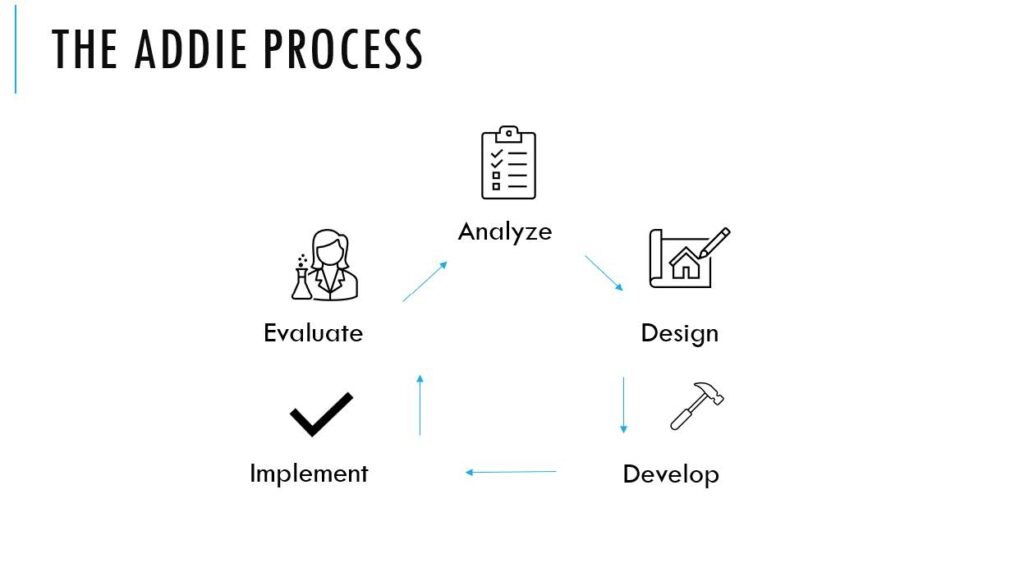
Imagine a slide containing a multi-step graphic like the ADDIE Process above. Rather than writing and assigning separate descriptions for every shape, arrow, and icon, you simply group them and write one unified description.
Step-by-Step Instructions
Step 1. Select all elements
Windows: Hold down the Shift or Ctrl key while clicking the remaining items. Alternatively, click and drag your cursor over all elements to select them at once.
Mac: Hold down the Shift or Cmd key while clicking the remaining items.
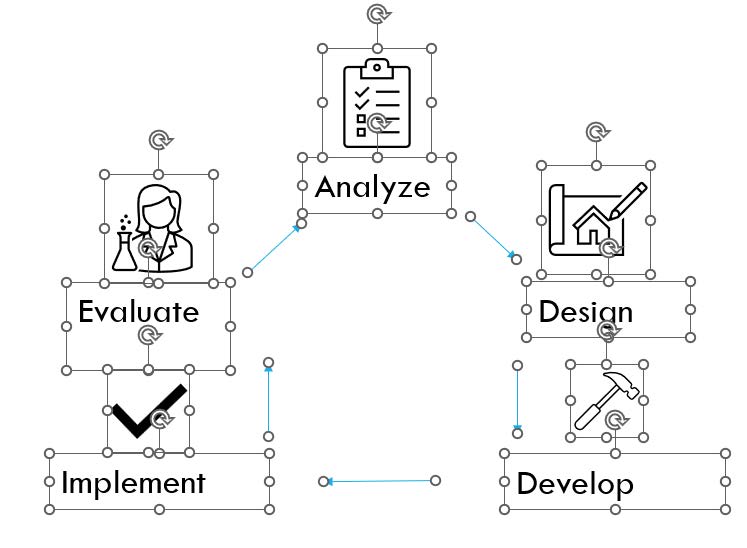
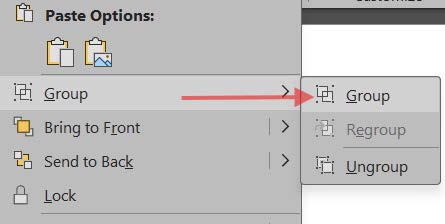
Step 2. Group the items together
Right-click on any of the selected elements and select Group > Group. A single bounding box will appear around the combined elements.
Keyboard Shortcut (Windows): Ctrl +G
Keyboard Shortcut (Mac): Cmd + Option + G
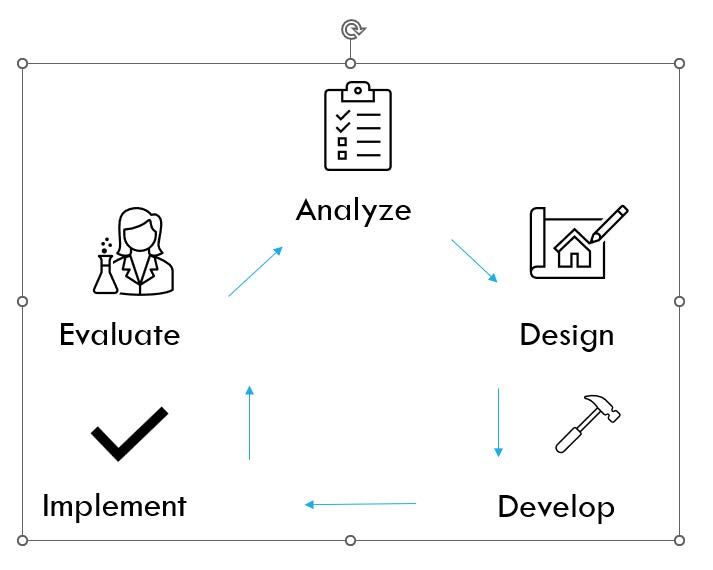
Step 3. Open the Alt Text pane
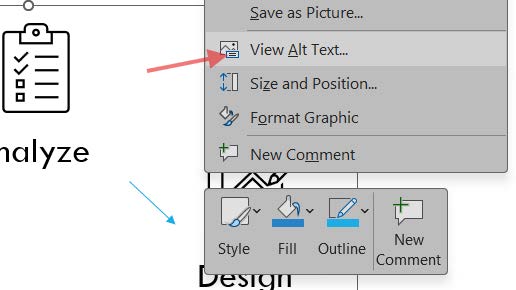
Right-click anywhere on the new group’s outer bounding box (the solid line) and select View Alt Text or Edit Alt Text from the drop-down menu. The Alt Text pane will open on the right side of your screen.
Step 4. Add your description
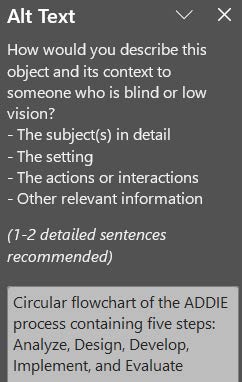
In the Alt Text box, type a clear, concise description of what the grouped graphic represents or the process it demonstrates.
Example: “Circular flowchart of the ADDIE process containing five steps: Analyze, Design, Develop, Implement, and Evaluate.”
Pro-Tips for Grouped Alt Text
- Text inside shapes: If your grouped shapes contain text, screen readers usually won’t read that text once it is grouped. Make sure you include the essential text and data points within your overall Alt Text description.
- Ungrouping resets it: If you ungroup the image later to make an edit, you will lose the group Alt Text. You will need to re-group and paste the description back in. (Tip: Copy the alt text before you ungroup!)